 server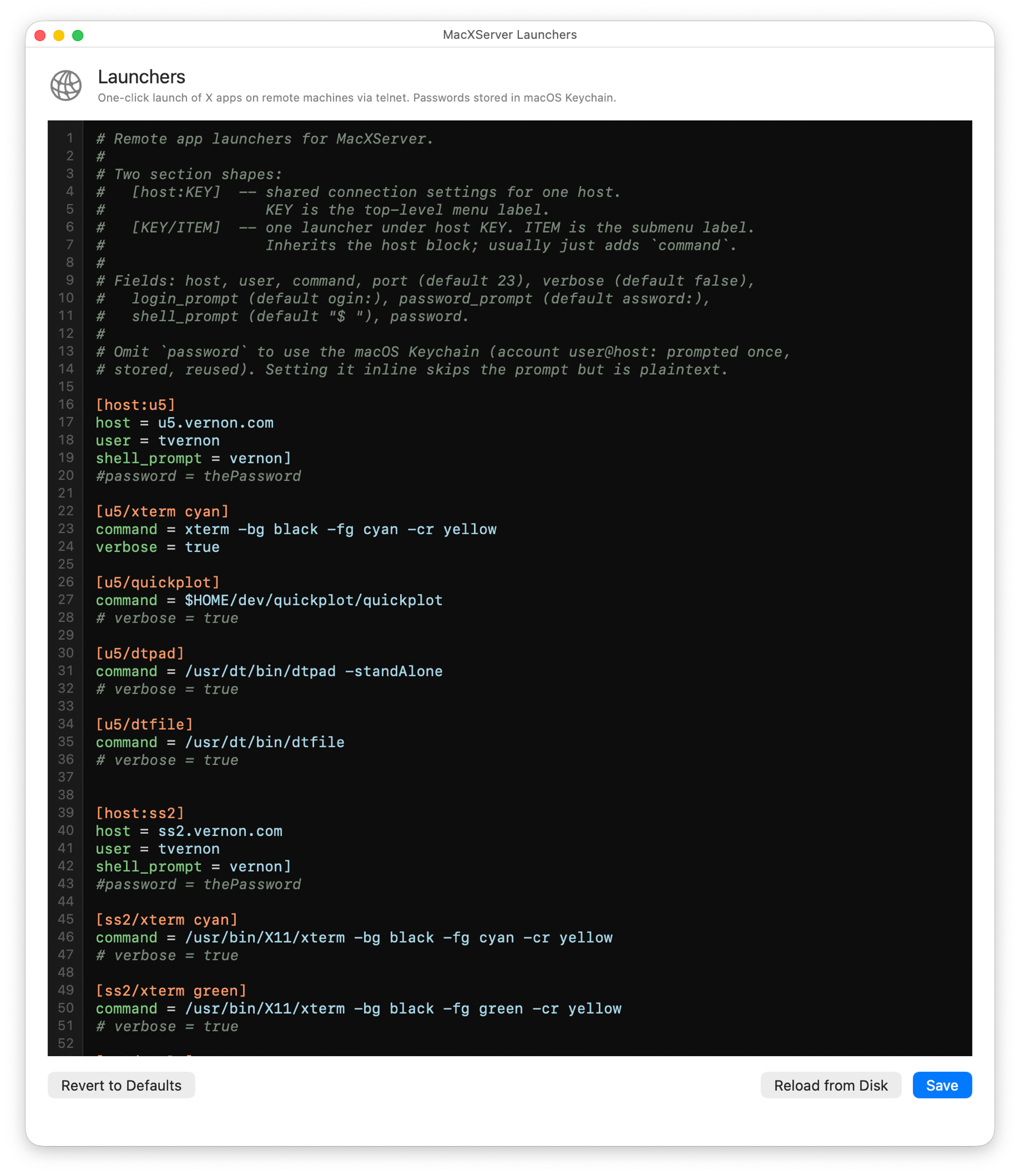
verbose = false and the window stays hidden.What it does
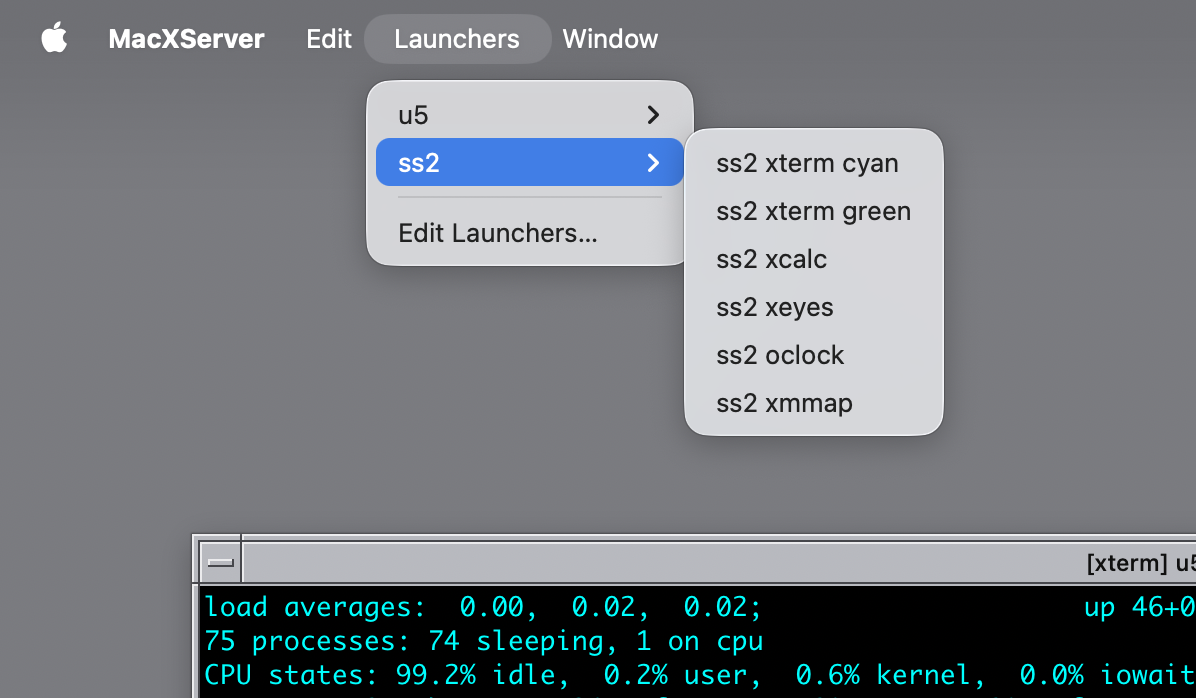
A two-stage menu in the macXserver status bar, grouped by host. Pick a remote
machine; pick an X app. macXserver connects in, sets DISPLAY to your Mac’s
IP, and launches the app. The window appears on your Mac.
No more remembering the right host, the right DISPLAY syntax, the right shell
to use, the right path to the binary. Passwords live in the Mac Keychain. An
optional verbose progress window shows you exactly what’s being sent over the
wire if you want to see it.
Two transports. Set transport = telnet (the default) for vintage boxes
that don’t run sshd — SunOS 4.1.4 and older Solaris are the cases this was
built for. Set transport = ssh for modern Linux, BSD, or Solaris hosts.
Password auth isn’t supported on the SSH path. Keys only. Run
ssh-copy-id user@host once from your Mac to install the key; the launcher
then uses it automatically via BatchMode=yes. Either transport sets
DISPLAY directly on the remote and lets the X client open a plain TCP
connection back to macXserver; we do not tunnel X traffic through ssh -X.
That means the remote sshd doesn’t need X11Forwarding yes, and the X11
path is the same regardless of transport, so anything that renders right
over telnet renders right over ssh.
When the X server is on your Mac and the X clients you actually want to run live on a Sun in the basement, the daily friction is the telnet-into-the-Sun part. That’s three steps every time: ssh-or-telnet, set DISPLAY correctly, run the binary. Multiplied across eight workstations and dozens of apps, it adds up. The launcher removes that friction.
The vintage Suns also have constraints: SunOS 4.1.4 doesn’t know about
xterm-256color, the default shell prompts assume TERM=vt100, and the path to
the binary depends on which release you’ve got mounted. The launcher negotiates
TERM=xterm on the telnet connection so the remote shell’s prompt setup runs
cleanly, and the per-host launcher configuration lets you encode the right path
per Sun.
Technical detail
Launcher entries live in ~/.macxserver-launchers as a structured config file.
A [host:NAME] block holds the connection settings for one machine, and each
app is its own [NAME/label] block that inherits those settings and adds a
command:
[host:ultra5]
host = ultra5.local
user = todd

[ultra5/xterm]
command = /usr/openwin/bin/xterm -bg black -fg white

[ultra5/xcalc]
command = /usr/openwin/bin/xcalc

[ultra5/quickplot]
command = /usr/local/quickplot/bin/quickplot

[host:ss2]
host = ss2.local
user = todd

[ss2/xterm]
command = /usr/bin/X11/xterm

[host:nuc]
host = nuc.local
user = todd
transport = ssh

[nuc/xterm]
command = xterm -fn 10x20 -bg black -fg green

[nuc/firefox]
command = firefox
The text after the / becomes the submenu label. Connection fields (host,
user, transport, port, shell_prompt, login_prompt, password_prompt,
verbose) go once in the [host:NAME] block, so each app block usually needs
only its command. transport defaults to telnet; set it to ssh for
modern hosts.
Passwords on telnet entries aren’t a config key you point at the Keychain.
Omit password and the launcher prompts you once, then stores it in the macOS
Keychain under the account user@host and reuses it on later launches. You can
set password inline in the host block instead, but it’s plaintext, so skip
that on a shared machine. SSH entries skip the password flow entirely — they
require key-based auth and never prompt for or store a password.
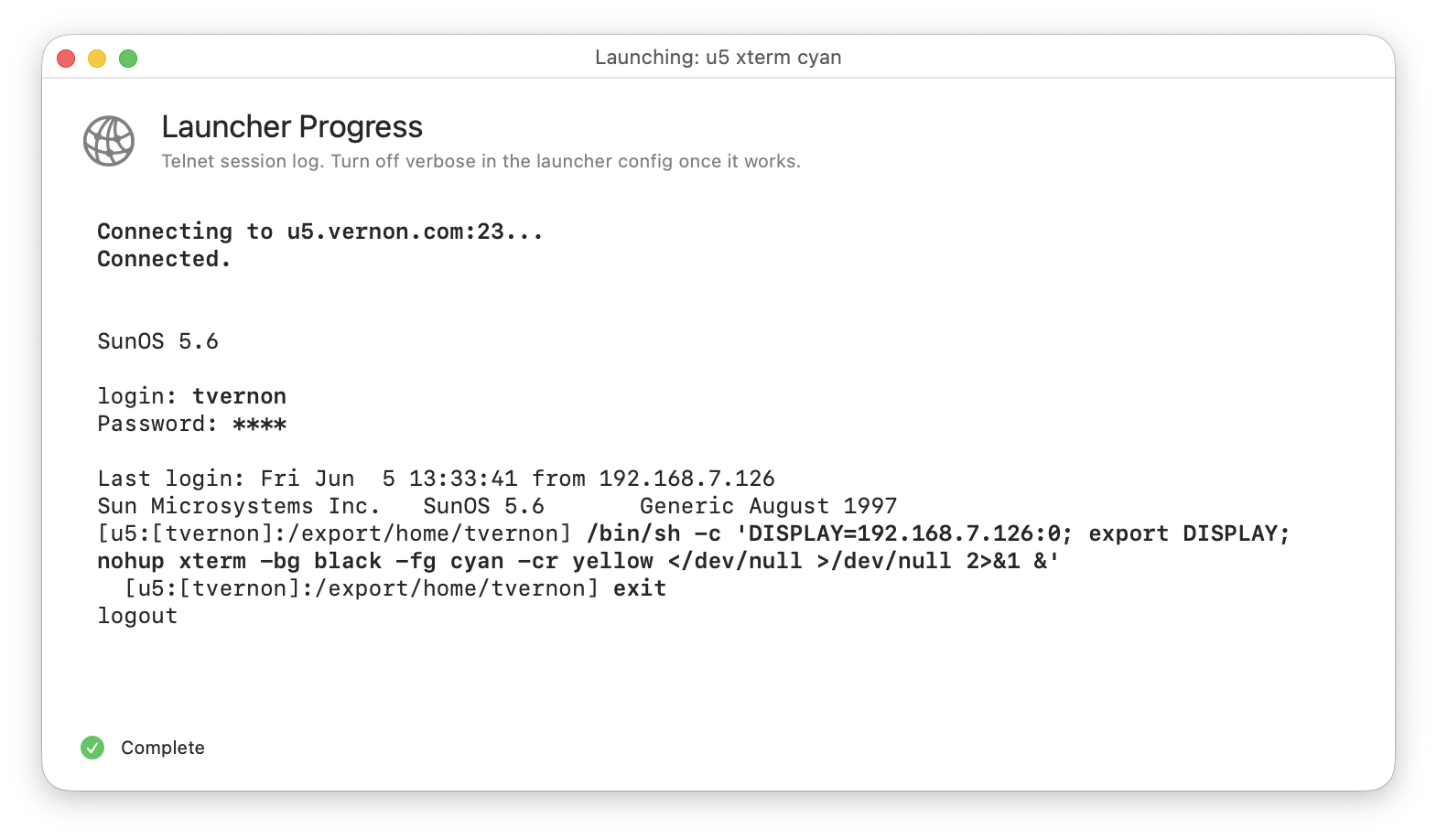
Under the hood, the telnet path runs an interactive expect-style script:
wait for the login prompt, send the user, wait for the password prompt, send
the password, wait for the shell prompt, send TERM=xterm, send
export DISPLAY=..., then send the binary launch. The SSH path is simpler —
it spawns /usr/bin/ssh with BatchMode=yes and StrictHostKeyChecking= accept-new and lets ssh handle the protocol; the wrapped remote command runs
through /bin/sh -c so the syntax is Bourne even if the remote user’s login
shell is csh or tcsh. Either way the optional progress window streams every
line of the transcript so you can debug a misbehaving remote shell.