 server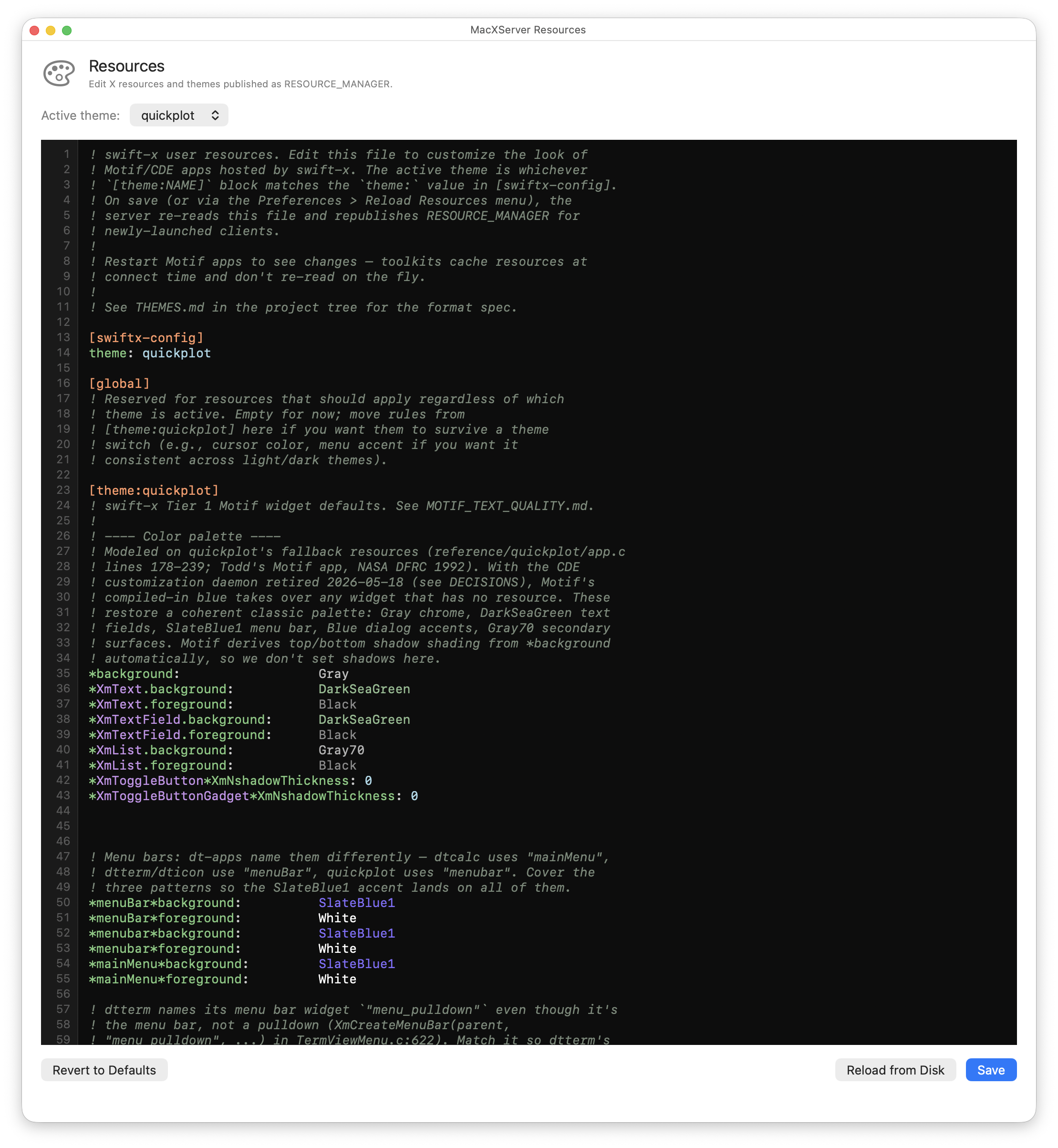
What it does
macXserver ships a built-in editor for the X RESOURCE_MANAGER property —
the global string of resource directives that Motif, CDE, and Xt-based widgets
read when they decide what they should look like. The editor has theme
switching, a dark code-editor surface with line numbers, “Reload from Disk” to
pick up changes you made in another editor, and “Revert to Defaults” with a
backup-first safety net.
When you reload, macXserver republishes the new resources on the root window. Newly-launched X clients pick up the changes immediately. Already-running clients keep their original resources (Motif and Xt cache the database at client startup; that’s an X convention, not a macXserver choice).
A vintage Motif app’s appearance is almost entirely a function of what
RESOURCE_MANAGER tells it. With no curation, Motif’s defaults are the
era-correct gray-on-gray look from 1995 — not necessarily what reads
cleanly next to a 2026 Mac desktop. The traditional path to customize this is to
write an .Xdefaults file by hand, with X11-specific resource-line syntax and
naming conventions that take some learning.
macXserver curates a default theme that looks reasonable out of the box, and the
editor makes it easy to tweak. Pick the named theme that suits the app you’re
running (the quickplot theme is tuned for the NASA plotting app; the default
theme is tuned for the broader Motif and dt-app family), then customize the
colors, fonts, and menu styling without leaving the app.
Technical detail
Resources are tiered. The editor surfaces all three tiers:
- Built-in defaults. Compiled into the binary. The “Revert to Defaults” button restores these.
- User file.
~/.macxserver-resources. Overrides the built-in defaults. This is what the editor reads and writes. - Live overrides via the Preferences UI. Theme switching, font preferences,
and a handful of other knobs that change the published
RESOURCE_MANAGERcontent directly.
The three tiers compose by precedence: live overrides win over the user file, which wins over built-in defaults. What gets published on the root window is the merged result, and what the editor shows is what’s actually live.
The file format is X11 resource syntax: widgetClass*resourceName: value per
line, comments with !. A [section] block within the file lets you scope a
group of resources to a named theme; switching the active theme in Preferences
picks which section gets published. There’s a [global] section for resources
that apply across themes, and a [macxserver-config] section for
macXserver-specific tunables (like the Motif frame).
The editor uses a SwiftUI text view inside an NSPanel with a plain NSView
line-number gutter and scroll synchronization. Editing is plain text; the goal
is “edit the X11 resource file with a real code editor” rather than “build a
graphical resource designer.”